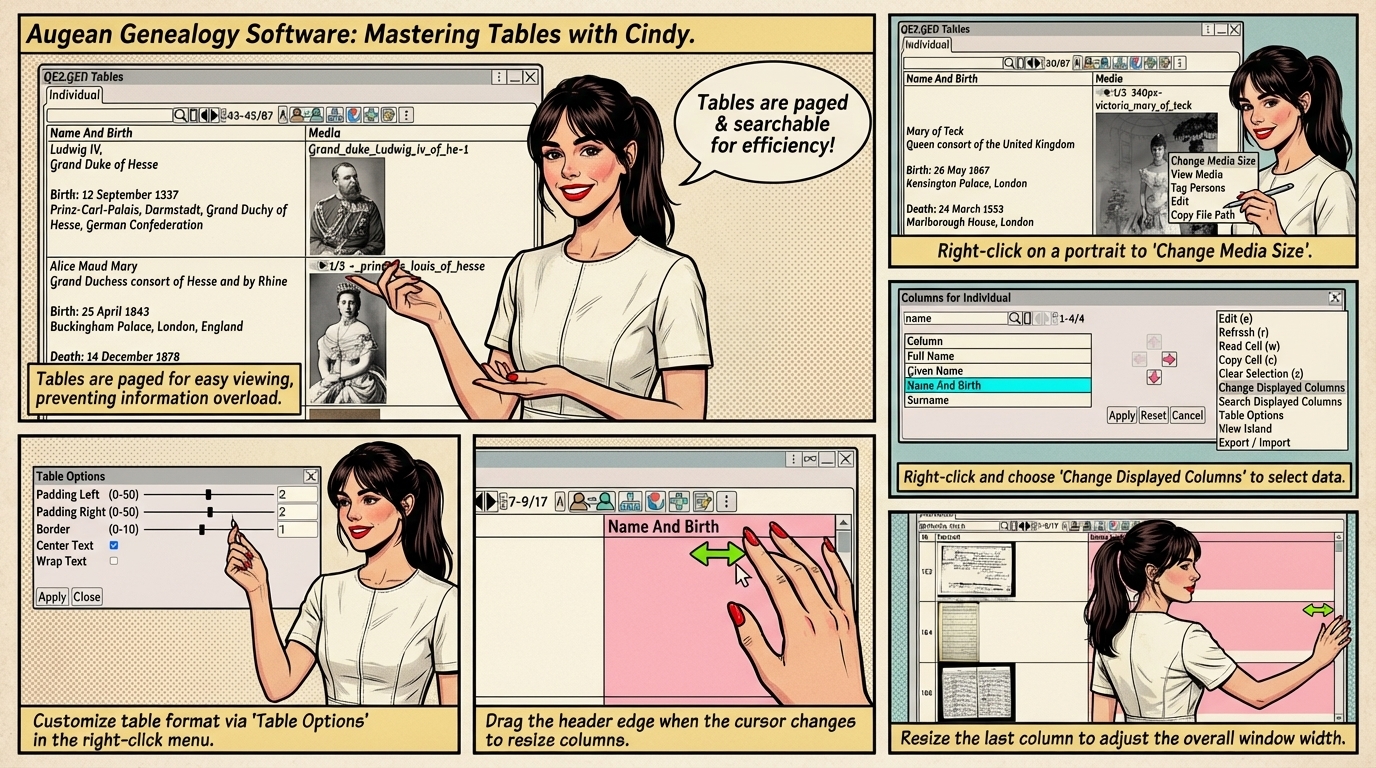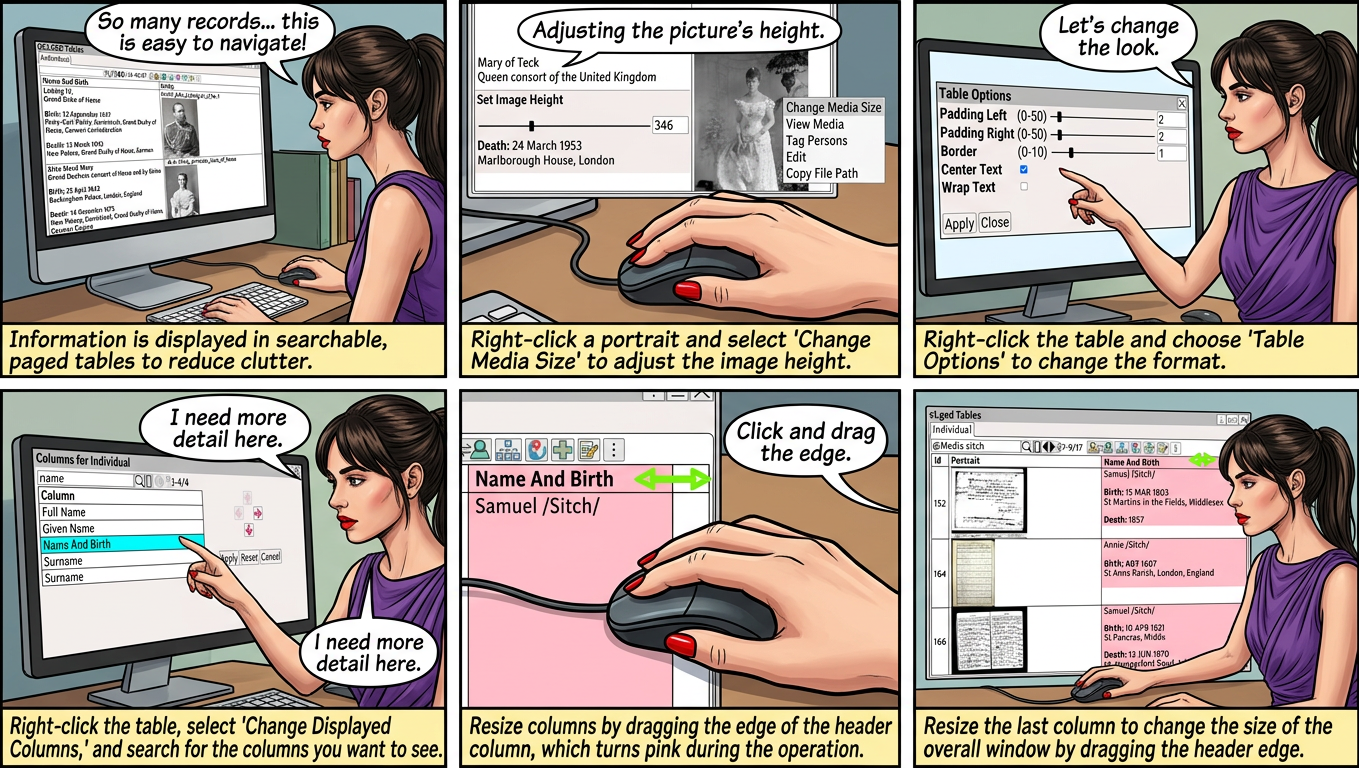
All information is presented in tables that can be paged through and searched.
This reduces frustration and allows users to locate information quickly.
• Restricts the amount of information on a screen at any one time
• Reduce visual clutter
• Efficient finding of information.
Information is displayed in tables.
All the tables are paged, so the browser will never have to display too many records at once.
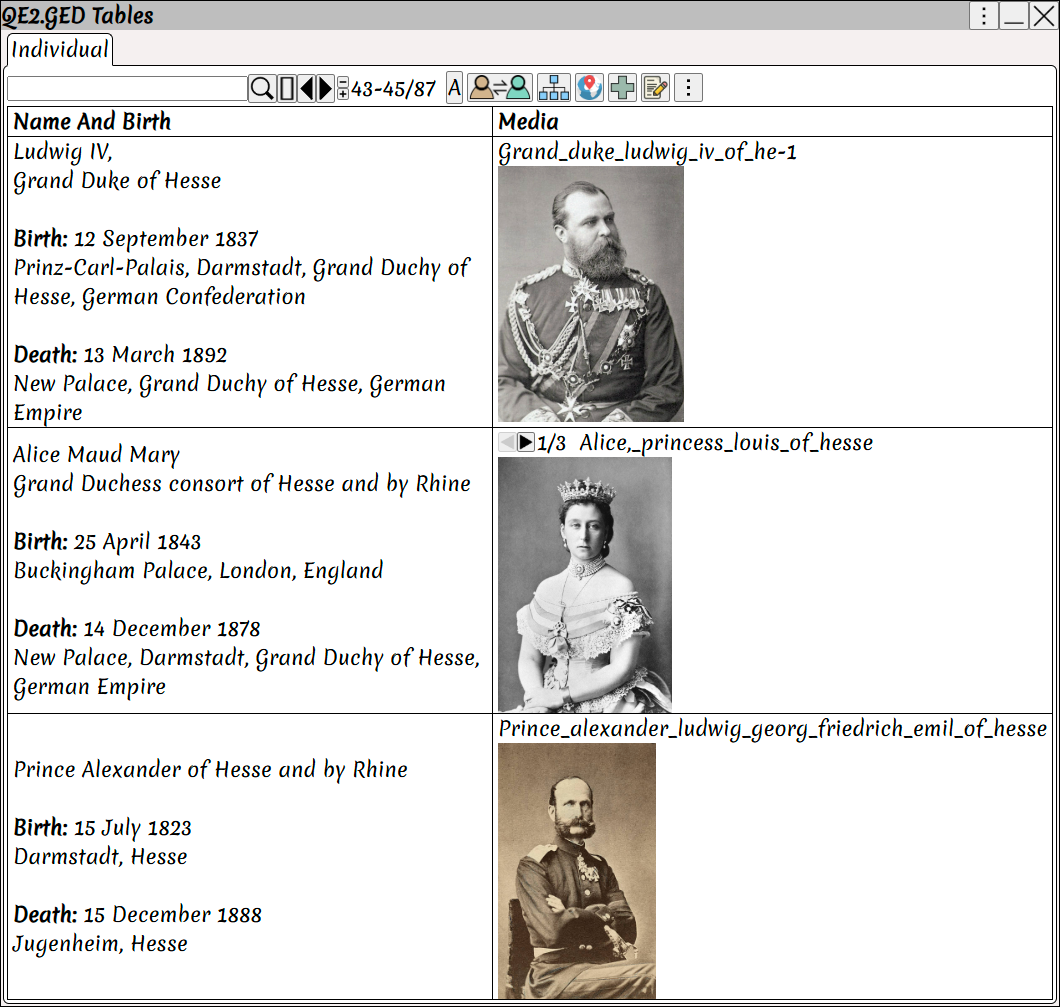
Sort Columns by clicking on the column header.
Enter search text to search, see User Interface ⟶ Searching
|
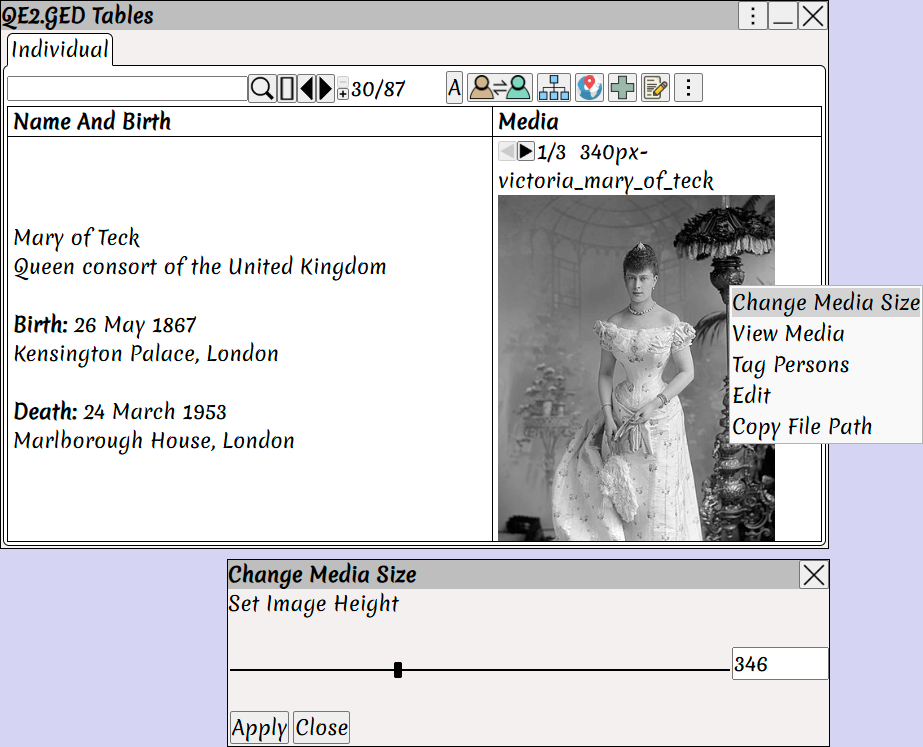
Change the media size.
Place your mouse over the portrait and Right Click ⟶ Change Media Size
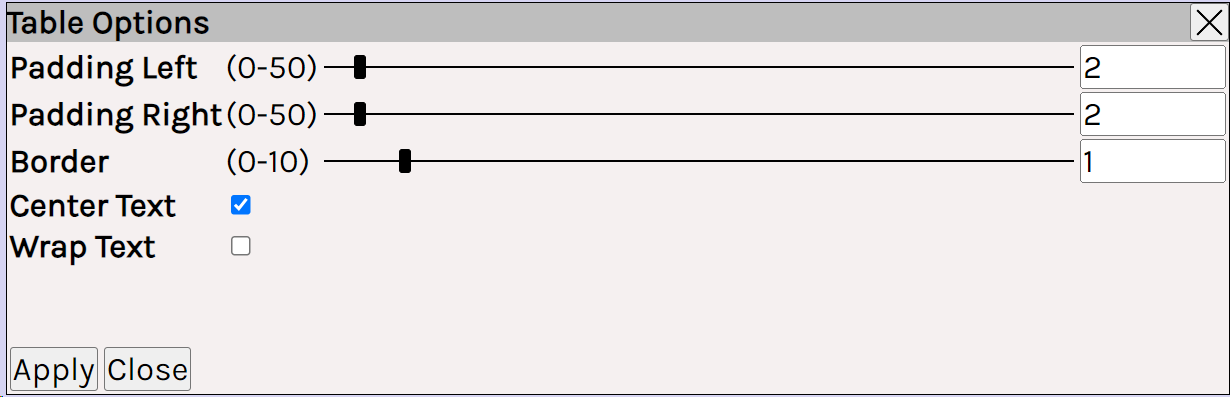
Change the format of the table.
Right Click ⟶ Table Options
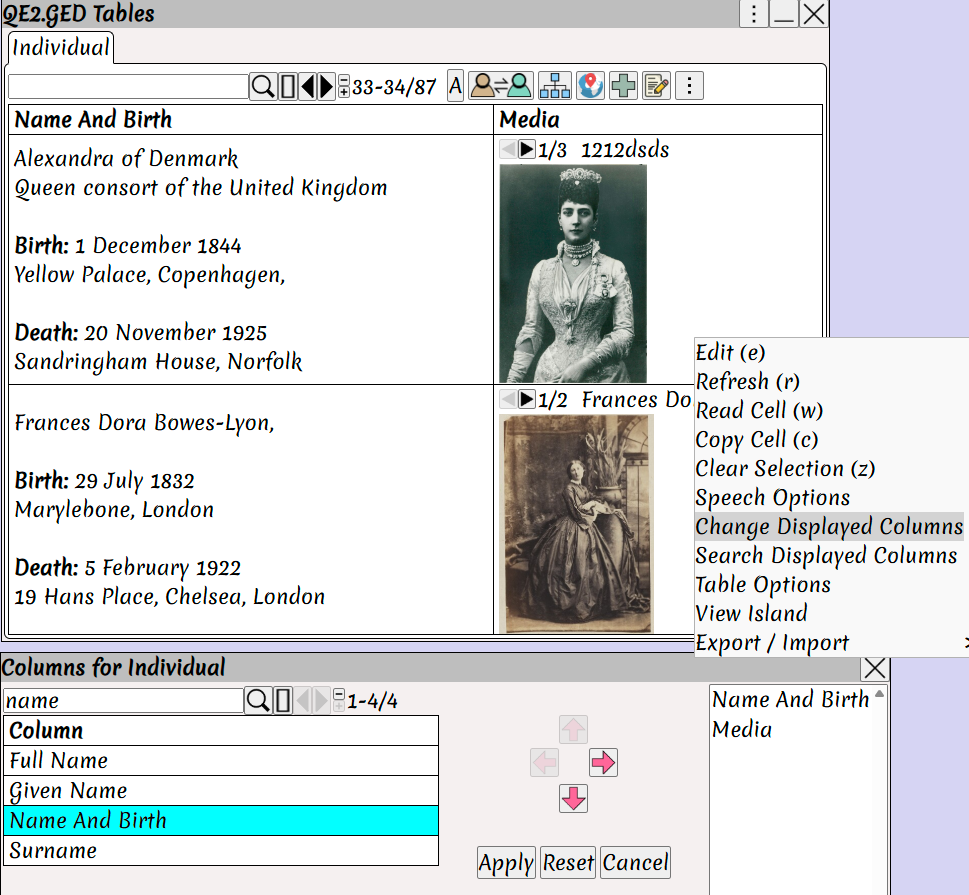
Change the columns to display.
Right Click ⟶ Change Displayed Columns
Search for the column you want.
Resize the column by holding the mouse over the edge of the header column
The cursor will change to a resize arrow ↔
Press the left mouse button and drag to change the size
The background turns pink for the column during the resize operation.
 The mouse must be positioned in the table column header, as shown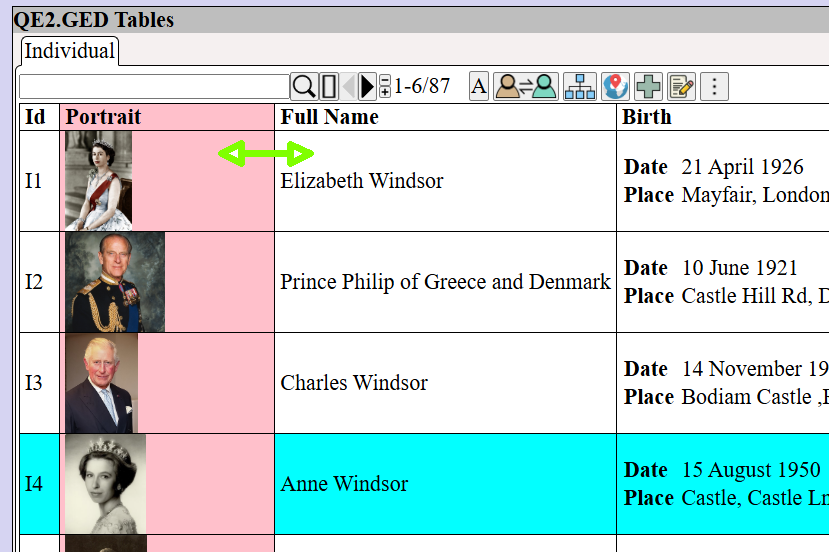
Resize the last column to change the size of the window
Hold the mouse over the edge of the header column, press the left mouse button and drag.
The mouse must be positioned in the table column header, as shown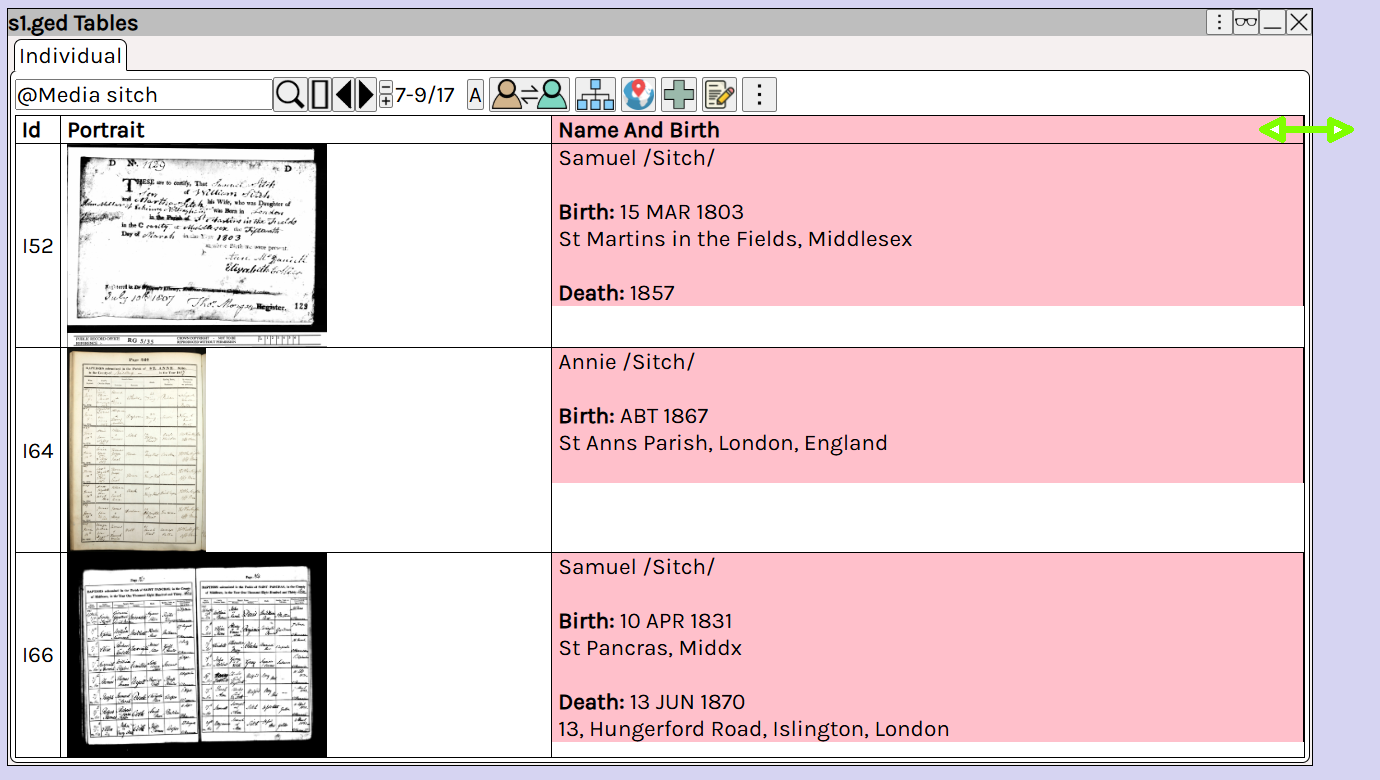
Selecting the view.
Use buttons ⟶ ⟶ ⟶ to select the table view
Each view can be independently customized using Right Click ⟶ Change Displayed Columns